Skip to content

Category: Web Development

  • WordPress Superpowers: A Guide to Must-Use (MU) Plugins

    WordPress Superpowers: A Guide to Must-Use (MU) Plugins

    In the WordPress hierarchy, there is a hidden tier of authority that exists far above your standard plugins and themes. They are called Must-Use (MU) plugins.

    If standard plugins are the “apps” on your phone, MU-plugins are the core operating system settings. They are powerful, permanent, and—if used correctly—they unlock a new level of control over your WordPress environment.

    A Brief History: From WPMU to Core

    The “MU” in MU-plugins originally stood for WordPress Multi-User.

    Back in the mid-2000s, WordPress was split into two separate projects: the standard WordPress we know today and WordPress MU (WPMU)—the engine behind massive networks like WordPress.com. Because WPMU allowed a single admin to manage thousands of sites, they needed a way to force specific logic across the entire network without individual site owners being able to disable it.

    The Milestone: June 2010

    The turning point came in June 2010 with the release of WordPress 3.0 “Thelonious.” This update merged WordPress and WordPress MU into a single product. While “Multi-User” was rebranded to “Multisite,” the “MU-plugins” folder was kept as a legacy feature. Developers quickly realized that the ability to “force-load” code was just as useful for a single-site installation as it was for a massive network.

    Today, the “MU” in MU-plugins officially stands for Must-Use.


    What Makes an MU-Plugin Different?

    Unlike standard plugins that live in /wp-content/plugins/, MU-plugins live in a specific directory: /wp-content/mu-plugins/.

    The Key Characteristics:

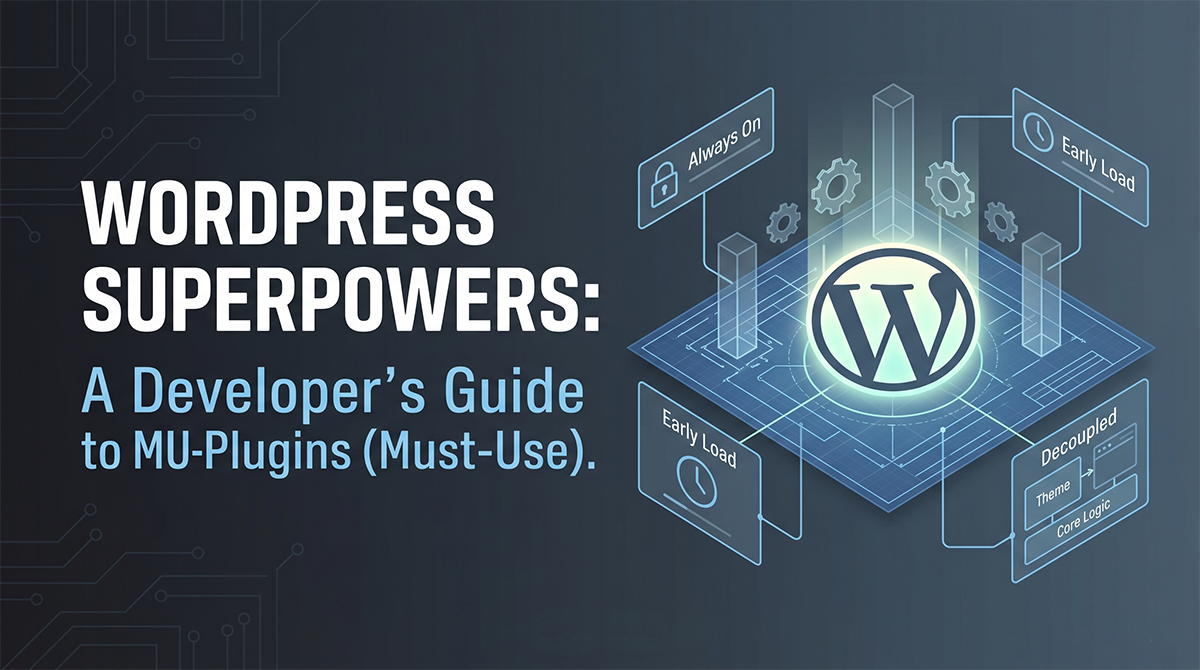
    • Always On: There is no “Activate” or “Deactivate” button. If the file exists in the folder, it is running.
    • Early Execution: They load alphabetically and before any standard plugins or themes. This allows you to hook into the earliest parts of the WordPress lifecycle.
    • Invisible to Users: They appear in a “Must-Use” tab in the plugin menu, but they cannot be turned off by other administrators via the dashboard.

    Decoupling: The Ultimate Professional Move

    The biggest mistake developers make is putting site-critical logic into a theme’s functions.php file. This creates Technical Debt. If you switch themes, your custom post types, taxonomies, and security tweaks vanish.

    By moving this logic to an MU-plugin, you decouple your logic from your design. Your theme becomes a “skin” that can be replaced at any time, while the “engine” of your site stays safely behind the walls.

    MU-Plugin vs. UI Builders (Pods, WCK, CPT UI)

    Many rely on heavy UI-based plugins to register post types. However, using an MU-plugin to write “Pure WordPress” code offers:

    1. Performance: You bypass the database queries required by UI builders.
    2. Version Control: Your architecture lives in a .php file that you can commit to GitHub.
    3. Portability: You can deploy your site structure across multiple environments without exporting/importing database settings.

    Code Example: The Portfolio Power Move

    Instead of a heavy plugin, use this lightweight MU-plugin to define a Portfolio CPT, a Taxonomy, and Meta Fields. Save this as /wp-content/mu-plugins/site-core-portfolio.php:

    PHP

    <?php
    /**
     * Plugin Name: Site Core Architecture: Portfolio
     * Description: Defines the Portfolio CPT, Project Type Taxonomy, and custom meta fields.
     */
    
    declare( strict_types = 1 );
    
    namespace SiteCore\Portfolio;
    
    /**
     * 1. Register the "Portfolio" Custom Post Type
     */
    function register_portfolio_cpt(): void {
        $labels = [
            'name'               => 'Portfolio',
            'singular_name'      => 'Project',
            'menu_name'          => 'Portfolio',
        ];
    
        $args = [
            'labels'             => $labels,
            'public'             => true,
            'has_archive'        => true,
            'show_in_rest'       => true, // Essential for Gutenberg
            'menu_icon'          => 'dashicons-portfolio',
            'supports'           => [ 'title', 'editor', 'thumbnail', 'excerpt', 'custom-fields' ],
        ];
    
        register_post_type( 'portfolio', $args );
    }
    add_action( 'init', __NAMESPACE__ . '\\register_portfolio_cpt' );
    
    /**
     * 2. Register the "Project Type" Taxonomy
     */
    function register_project_taxonomy(): void {
        $args = [
            'hierarchical'      => true, 
            'labels'            => [ 'name' => 'Project Types', 'singular_name' => 'Project Type' ],
            'show_in_rest'      => true,
            'show_admin_column' => true,
        ];
    
        register_taxonomy( 'project_type', [ 'portfolio' ], $args );
    }
    add_action( 'init', __NAMESPACE__ . '\\register_project_taxonomy' );
    
    /**
     * 3. Register Custom Meta (Lightweight)
     */
    function register_portfolio_meta(): void {
        register_post_meta( 'portfolio', 'project_client_name', [
            'show_in_rest' => true,
            'single'       => true,
            'type'         => 'string',
        ]);
    }
    add_action( 'init', __NAMESPACE__ . '\\register_portfolio_meta' );
    

    The MU-Plugin Safety Checklist

    With great power comes great responsibility. Keep these rules in mind:

    1. No Safety Net: A syntax error in an MU-plugin will trigger a White Screen of Death (WSoD) immediately. Always test on staging.
    2. No Subdirectories: WordPress only looks for single files in /mu-plugins/. If your plugin has multiple files, use a “loader” file in the root to require_once the others.
    3. Manual Updates: Since these don’t live in the WP Repository, you are responsible for keeping the code updated and compatible with future WP versions.

    Summary

    By using MU-plugins, you are standing on the shoulders of WordPress history. You are graduating from the “junk drawer” of functions.php and the bloat of UI builders to create a site that is portable, professional, and permanent.
  • Hard-Coding Quality: Why I Force Featured Images in WordPress

    Hard-Coding Quality: Why I Force Featured Images in WordPress

    In a fast-moving newsroom or a multi-author blog, “best practices” are usually the first thing to go out the window when a deadline looms. The most common casualty? Featured Images. To solve this, I built a specialized MU-plugin (Must-Use plugin) that intercepts the WordPress save process. Unlike standard plugins, an MU-plugin is automatically enabled across the entire site (or network) and cannot be deactivated from the admin dashboard, making it the perfect tool for enforcing global editorial standards.

    Deep Dive: Looking for more on why MU-plugins are a developer’s secret weapon? Check another post, WordPress Superpowers: A Guide to Must-Use (MU) Plugins, where I break down how they differ from standard plugins and why they require such careful handling.

    Publishing without a featured image isn’t just a visual glitch—it is a self-inflicted wound to your WordPress site’s SEO and social performance.

    The WordPress SEO Gap

    When you click “Publish” in WordPress and leave that featured image box empty, you are creating several invisible problems:

    • Broken Social Snippets: WordPress uses the featured image to populate Open Graph tags. Without it, platforms like X and LinkedIn will often pull a random banner or show a blank box, cratering your click-through rate.
    • Google Discover Ineligibility: Google’s Discover feed is a massive traffic driver, but it has strict visual requirements. No high-quality image usually means zero Discover traffic.
    • Schema Markup Failures: SEO plugins like Yoast or RankMath rely on the featured image to generate Article schema. Missing images can lead to Search Console errors that hurt your ranking potential.

    Intercepting the Block and Classic Editors

    WordPress makes enforcement tricky because there are now two distinct ways to save content. This plugin addresses both to ensure there are no loopholes.

    1. The Block Editor (Gutenberg) & REST API

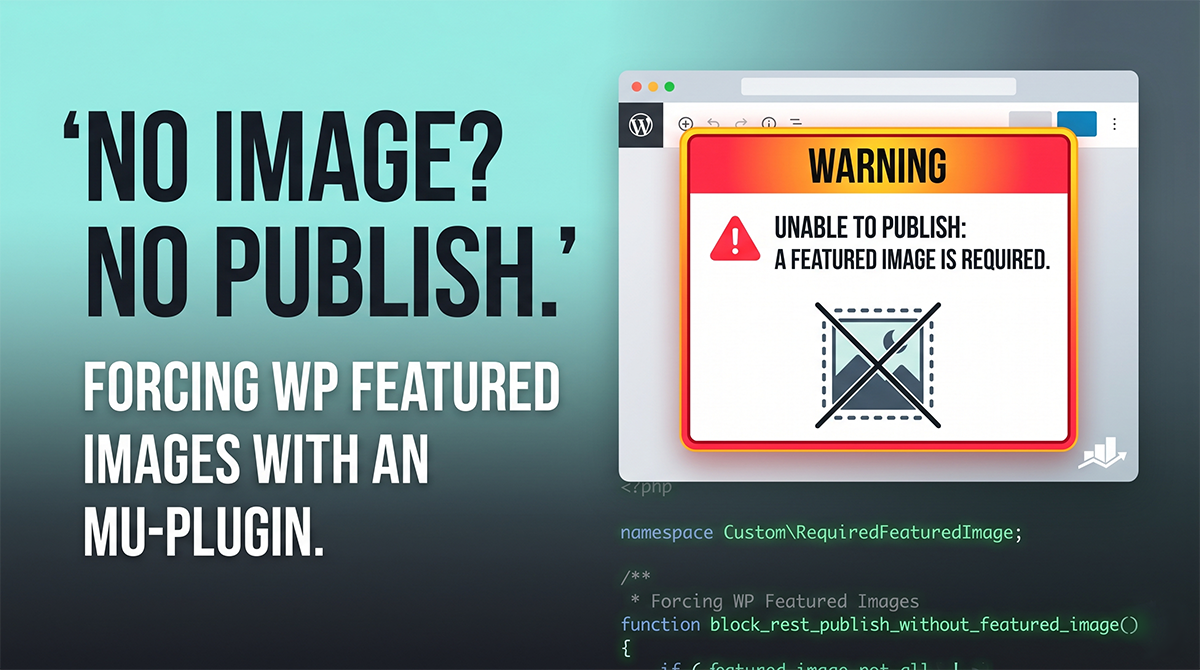
    Modern WordPress saves via the REST API. The plugin hooks into rest_pre_insert_{$post_type}. If the featured image is missing, it returns a WP_Error. This triggers a clear, user-friendly error message inside the Block Editor that physically prevents the post from being published.

    2. The Classic Editor & Quick Edit

    For the Classic Editor or “Quick Edit” features, we hook into wp_insert_post_data. Since this filter doesn’t support returning errors, the plugin performs a “silent downgrade”—it switches the status back to Draft and flags the URL to display a warning to the editor upon redirect.


    The Code: Required Featured Image Guard

    Save this code into wp-content/mu-plugins/required-image.php. Because it is an MU-plugin, you don’t need to “activate” it; WordPress will load it automatically.

    PHP

    <?php
    /**
     * Plugin Name: WordPress Required Featured Image
     * Description: Prevents WordPress posts from being published without a featured image.
     */
    
    declare( strict_types = 1 );
    
    namespace Custom\RequiredFeaturedImage;
    
    use WP_Error;
    
    if ( ! defined( 'ABSPATH' ) ) {
        exit;
    }
    
    const TEXT_DOMAIN = 'wp-required-image';
    const NOTICE_QUERY_ARG = 'missing_featured_image_error';
    const REST_REQUEST_GLOBAL = 'wp_required_featured_image_rest_request';
    
    /**
     * Define which post types require an image.
     */
    const REQUIRED_POST_TYPES = array(
        'post',
        'page',
    );
    
    const PUBLICATION_STATUSES = array(
        'publish',
        'future',
    );
    
    /**
     * Registers REST guards for the Block Editor.
     */
    function register_rest_guards(): void {
        foreach ( REQUIRED_POST_TYPES as $post_type ) {
           add_filter( "rest_pre_insert_{$post_type}", __NAMESPACE__ . '\\block_rest_publish_without_featured_image', 10, 2 );
        }
    }
    add_action( 'init', __NAMESPACE__ . '\\register_rest_guards', 100 );
    
    add_filter( 'rest_pre_dispatch', __NAMESPACE__ . '\\capture_rest_request', 1, 3 );
    add_filter( 'wp_insert_post_data', __NAMESPACE__ . '\\downgrade_publish_without_featured_image', 20, 4 );
    add_filter( 'redirect_post_location', __NAMESPACE__ . '\\add_admin_notice_redirect_flag', 10, 2 );
    add_action( 'admin_notices', __NAMESPACE__ . '\\show_admin_notice' );
    
    function capture_rest_request( $result, $server, $request ) {
        $GLOBALS[ REST_REQUEST_GLOBAL ] = $request;
        return $result;
    }
    
    function is_required_post_type( string $post_type ): bool {
        return in_array( $post_type, REQUIRED_POST_TYPES, true ) && post_type_exists( $post_type );
    }
    
    function is_publication_status( string $status ): bool {
        return in_array( $status, PUBLICATION_STATUSES, true );
    }
    
    /**
     * Gutenberg/REST API Guard
     */
    function block_rest_publish_without_featured_image( $prepared_post, $request ) {
        $post_id   = $prepared_post->ID ?? 0;
        $post_type = $prepared_post->post_type ?? '';
        $status    = $prepared_post->post_status ?? '';
    
        if ( ! is_required_post_type( $post_type ) || ! is_publication_status( $status ) ) {
           return $prepared_post;
        }
    
        if ( has_image_id_in_request( (int) $post_id, array(), $request ) ) {
           return $prepared_post;
        }
    
        return new WP_Error(
           'featured_image_required',
           __( 'WordPress requires a featured image before this can be published.', TEXT_DOMAIN ),
           array( 'status' => 400 )
        );
    }
    
    /**
     * Classic Editor / Quick Edit Guard
     */
    function downgrade_publish_without_featured_image( array $data, array $postarr ): array {
        if ( ! is_required_post_type( $data['post_type'] ) || ! is_publication_status( $data['post_status'] ) ) {
           return $data;
        }
    
        if ( has_image_id_in_request( (int) ($postarr['ID'] ?? 0), $postarr ) ) {
           return $data;
        }
    
        $GLOBALS['wp_image_blocked'] = true;
        $data['post_status'] = 'draft';
    
        return $data;
    }
    
    /**
     * Validates if an image ID exists in the current save request
     */
    function has_image_id_in_request( int $post_id, array $postarr = array(), $request = null ): bool {
        $keys = array( '_thumbnail_id', 'featured_media', 'featured_media_id' );
        
        foreach ( $keys as $key ) {
            if ( isset( $_POST[$key] ) && (int) $_POST[$key] > 0 ) return true;
            if ( isset( $postarr[$key] ) && (int) $postarr[$key] > 0 ) return true;
        }
    
        return $post_id > 0 && (int) get_post_meta( $post_id, '_thumbnail_id', true ) > 0;
    }
    
    function add_admin_notice_redirect_flag( string $location, int $post_id ): string {
        return ! empty( $GLOBALS['wp_image_blocked'] ) ? add_query_arg( NOTICE_QUERY_ARG, '1', $location ) : $location;
    }
    
    function show_admin_notice(): void {
        if ( ! empty( $_GET[ NOTICE_QUERY_ARG ] ) ) {
           echo '<div class="notice notice-error"><p>' . esc_html__( 'Publication Blocked: You must set a featured image in WordPress before publishing.', TEXT_DOMAIN ) . '</p></div>';
        }
    }
    

    Final Thoughts

    By putting this guardrail in place at the MU-plugin level, you take the guesswork out of your editorial workflow. Authors no longer have to remember the “Featured Image rule”—the WordPress interface simply won’t let them forget. It’s a win for consistent design and a major win for your site’s SEO and social reach.

  • Why I Built Fennec Forms

    Why I Built Fennec Forms

    I did not build Fennec Forms because the world needed one more form builder.

    I built it because I kept running into the same frustration: the tools already in use around me were capable, established, and deeply embedded in real business workflows, but they felt painfully antiquated.

    The two platforms I came to know best were DragonForms and Wufoo. DragonForms is heavily integrated into the Omeda Customer Data Platform, and within that constraint it does its job well. Wufoo has also been around long enough to build a strong feature set and a loyal user base. This is what made the problem so obvious to me. The issue was not that these platforms were empty or weak. It was that they felt old in all the ways that matter when you actually have to use them every day.

    The frontend experience especially always stood out. Too many forms in this category still look like they were pulled from a web design time capsule buried somewhere around the turn of the century. The styling feels stale. The interactions feel stale. The experience for respondents feels stale. And once you notice that, you start seeing the same thing on the creator side too. Even when the underlying functionality is strong, the overall product can still feel rigid, clunky, and out of step with how people expect software to work now.

    That gap is the reason Fennec Forms exists.

    I wanted to build something modern, flexible, and device agnostic for both respondents and creators. Not modern as a cosmetic layer pasted over an old workflow, but modern in the way the platform behaves. It should feel good to build in. It should feel natural to respond to. It should work whether someone opens it on a phone, a tablet, or a desktop. It should hold up whether it lives on a hosted page, inside an embed, behind a QR code, or as part of a broader workflow. It should work anywhere.

    That also meant building around the reality that forms are not just forms. Sometimes you are collecting information. Sometimes you are gathering feedback. Sometimes you are running a quiz or assessment. Sometimes you need a direct link. Sometimes you need an embed. Sometimes you need kiosk mode. Sometimes you need to understand exactly where responses came from and keep them organized for a whole team. I wanted Fennec Forms to reflect that reality instead of forcing everything through one stale, generic interface.

    A big part of the motivation was respect for the people on both sides of the screen. Respondents should not feel like they are wrestling with a relic just to fill out something simple. Creators should not feel like publishing a polished, flexible form requires compromising on usability or presentation. If forms are often the first interaction someone has with an organization, then the experience matters. A bad form does not just feel inconvenient. It makes the organization behind it feel behind.

    The name Fennec Forms comes from that same thinking.

    I love foxes, and the fennec fox in particular felt like the right symbol for what I wanted this platform to be. A fennec fox is lightweight and agile, but also highly intelligent. That combination is the ethos behind Fennec Forms. I wanted the platform to feel light on its feet, easy to use, and adaptable to different situations, without sacrificing depth or thoughtfulness. In other words, I did not want “simple” to mean limited, and I did not want “powerful” to mean bloated. The goal was a platform that could move quickly, work anywhere, and still feel smart and capable underneath the surface.

    That is really the heart of it.

    Fennec Forms was built as a response to a category full of tools that proved how much functionality matters, but also how long bad experience can survive when software becomes entrenched. I took that seriously. There is real value in the depth those older platforms built over time. But I do not think antiquated UX, outdated presentation, and device-fragile experiences should be accepted as the price of maturity.

    Fennec Forms is my attempt to build something better from that lesson. A platform that is flexible without feeling chaotic. Modern without feeling trendy. Capable without feeling heavy. Something that helps people create forms, surveys, and quizzes that work anywhere and feel like they belong on today’s web, not yesterday’s.

    That is why I built it, and that is what the name is meant to capture.

  • Guard Dog: Building the WordPress Security Tool I Actually Wanted to Use

    Guard Dog: Building the WordPress Security Tool I Actually Wanted to Use

    There’s a specific kind of clarity that comes from what I call “rage coding.”

    A while back, I started a high-stakes, custom WordPress integration for my employer. The project had unique security needs to keep personally identifiable information as well as financial information safe and secure. I had a specific list of security layers and features I needed that would have taken at least a few plugins and some money check all the boxes and even then – I knew there would inevitably be some custom code I would have to write.

    I’d been using a plugin called AIO Login for years, but mostly just to change the admin URL. When I looked into their “Pro” features to fill the gaps in my project, I hit a wall. I don’t begrudge anyone for wanting to get paid for their software, but the “freemium” shift in the WordPress ecosystem—where foundational tools like Pojo One Click Accessibility or Aryo Activity Log are sold off or locked behind subscriptions—started to wear on me.

    I realized I could either pay a nominal fee for a tool that mostly did what I wanted, or I could build the exact tool I needed.

    I chose the latter. Guard Dog is the result.

    The “Crown Jewel” of My Workflow

    Guard Dog has been in the official WordPress repository for about five months, following a six-month deep-dive in development. It is, without hyperbole, my “crown jewel.”

    I use it every single day. It’s installed on my personal sites (including this one), as well as sites that handle hundreds of thousands of users from a global audience each month. I depend on it to secure sites that handle personal data and actual revenue streams. Because I’m the primary user, I’m obsessive about its stability. If it breaks, any and all of the fallout is on me and that’s not something I take lightly at all.

    Built for Me, Shared with You

    I am a very particular person. I built Guard Dog to meet my “needs” first, and then I started adding “wants”—quality-of-life features that make things easier for both admins and end-users.

    Recently, I pushed a major update: Passkey support. I added this primarily because I wanted to use Passkeys on my own sites. It’s the gold standard for modern, passwordless security, and I didn’t think it was something users should have to pay a premium for.

    What’s currently under the hood:

    • Passkey Support: Secure, biometric, or hardware-key logins.
    • Session Management: See who is logged in and where, with the ability to kill sessions instantly.
    • Limit Login Attempts: Brute-force protection that actually works.
    • Temporary User Access: Grant secure, timed access to devs or support staff without permanent credentials.
    • 2FA & IP Whitelisting: The essentials for any hardened site.

    What’s Next: Reducing Friction

    The next phase of the project is focused on OAuth and Social Login.

    As a content consumer, I’ve come to expect “Login with Google”, “Login with Facebook” or some other platform provider. It’s fast, it’s easy, and it reduces the “password fatigue” we all feel. As an admin, it makes user acquisition much smoother. This is a pure quality-of-life play, and I’m currently mapping out the most secure way to bring that to the plugin.

    Why It’s Free (And Will Stay That Way)

    I’m not a salesperson, and this isn’t a pitch. I’m not looking to make money off this plugin. If you use Guard Dog and it helps you sleep better at night, that’s fantastic. If you don’t, that’s okay too.

    The internet runs on WordPress. Big companies have budgets for custom security, but the individual creator or the small team shouldn’t be penalized or left vulnerable because they don’t have (or didn’t think they would need) a budget for basic security.

    I built this for me, but I’m sharing it because a more secure WordPress ecosystem benefits everyone.


    Where to find it

  • Say Goodbye to chown: Fixing WordPress File Permissions in Docker on Windows with WSL

    Say Goodbye to chown: Fixing WordPress File Permissions in Docker on Windows with WSL

    If you’re developing WordPress themes or plugins locally on Windows using Docker inside of WSL, you’ve likely run into a frustrating and time-consuming problem: the constant battle with file permissions.

    One minute, you need to set your theme files to adam:adam so you can edit them in your IDE like PhpStorm or VS Code. The next, you need to switch them to www-data:www-data so that the web server can run a server-side process, like an automatic SCSS compiler. Then, to update a plugin from the WordPress admin panel, you have to switch the permissions back again.

    This constant chown shuffle is a major drag on productivity. I recently faced this exact scenario with a specific local development stack:

    • Host OS: Windows 11
    • Linux Environment: WSL (Ubuntu)
    • Containerization: Docker Desktop
    • WordPress Image: The official wordpress:latest
    • Workflow: WordPress files mounted from my local WSL filesystem into the container.

    The goal was simple: edit files as my local user while allowing the WordPress container to perform its necessary file operations without constant permission changes. After some trial and error, I landed on a clean, permanent solution. This fix has been tested for the environment above and works perfectly.

    The Core of the Problem: A User ID Mismatch

    The friction comes from a fundamental conflict between users. On your WSL instance, your user (adam in my case) owns the project files. This user has a specific User ID (UID) and Group ID (GID), which are typically 1000 and 1000 for the default user on most Linux distributions.

    However, inside the official wordpress:latest Docker container, the Apache web server runs as the www-data user by default. This www-data user has a different UID and GID (usually 33). When WordPress needs to write a file—like scssphp compiling a stylesheet or a plugin being updated—it does so as www-data. Since the UIDs don’t match, you get permission errors unless you manually change the file owner to www-data.

    Worse yet, I noticed that on some occasions, a process would create a file owned by root, adding yet another layer of complexity. The solution is to stop juggling users and just make them the same.

    The Solution: Synchronize Your User with the Container

    The most robust fix is to tell Docker to run the Apache process inside the container using your own user’s UID and GID. This way, from the file system’s perspective, your local user and the web server user are identical. Any file you create can be read/written by the server, and any file the server creates is owned by you.

    Here’s how to do it in two simple steps.

    Step 1: Find Your User and Group ID in WSL

    First, you need to find the UID and GID of your user inside your WSL terminal. It’s almost certainly 1000:1000, but it’s always best to verify.

    Open your WSL terminal and run the following command:

    Bash

    id -u && id -g
    

    This will print your UID and GID. Take note of these numbers.

    Step 2: Update Your docker-compose.yml

    Next, open the docker-compose.yml file in your project root. We are going to add a single, powerful directive to your WordPress service configuration: user.

    Find the service definition for your WordPress container and add the line user: "1000:1000", replacing 1000:1000 with your actual UID and GID if they are different.

    Here is a before-and-after example:

    Before:

    YAML

    version: '3.8'
    services:
      wordpress:
        image: wordpress:latest
        volumes:
          - ./wp-content:/var/www/html/wp-content
          # other configurations...
        ports:
          - "8080:80"
        restart: always
    

    After:

    YAML

    version: '3.8'
    services:
      wordpress:
        image: wordpress:latest
        user: "1000:1000" # Add this line!
        volumes:
          - ./wp-content:/var/www/html/wp-content
          # other configurations...
        ports:
          - "8080:80"
        restart: always
    

    Step 3: Rebuild and Verify

    Save your docker-compose.yml file. Now, stop and rebuild your container to apply the change. Run this command from your project directory in the WSL terminal:

    Bash

    docker-compose down && docker-compose up -d --build
    

    Once the container is running, you can verify that it’s working. Have WordPress perform an action that creates a file. In my case, I deleted my old compiled CSS file and reloaded a page, which triggered the scssphp compiler.

    Then, check the file’s ownership in your terminal:

    Bash

    ls -l wp-content/themes/your-theme/path/to/main.css
    

    The owner should now be your local user (adam adam). Success! You can now edit the file, and the server can still overwrite it when it recompiles, with zero permission conflicts.

    A Smoother Path Forward

    By synchronizing the container’s user with your local user, you eliminate the source of the permission conflict entirely. This simple, one-line change to your docker-compose.yml creates a seamless and efficient local development workflow. No more context switching, no more running chown—just smooth, productive coding.

    Disclaimer: This solution has been specifically tested and confirmed to work with a development environment running on Windows, using Docker Desktop with the WSL backend, and running the official wordpress:latest image with locally mounted files. While the principles apply more broadly, the exact implementation may differ in other environments.

  • Set Tag Order WordPress Plugin

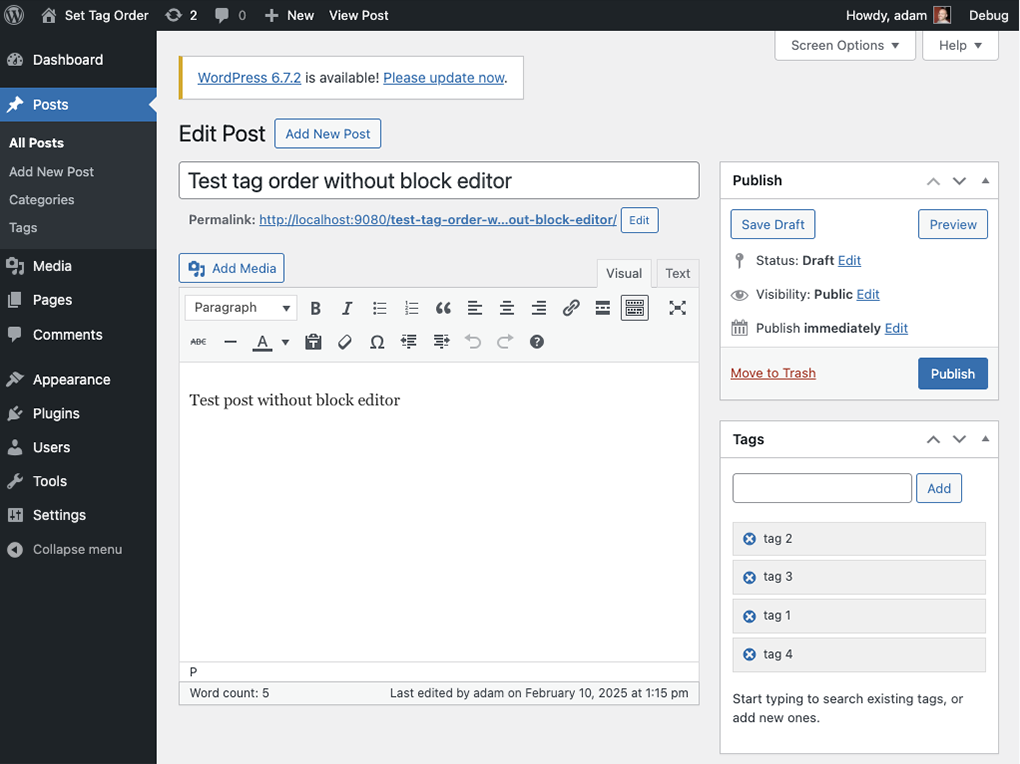
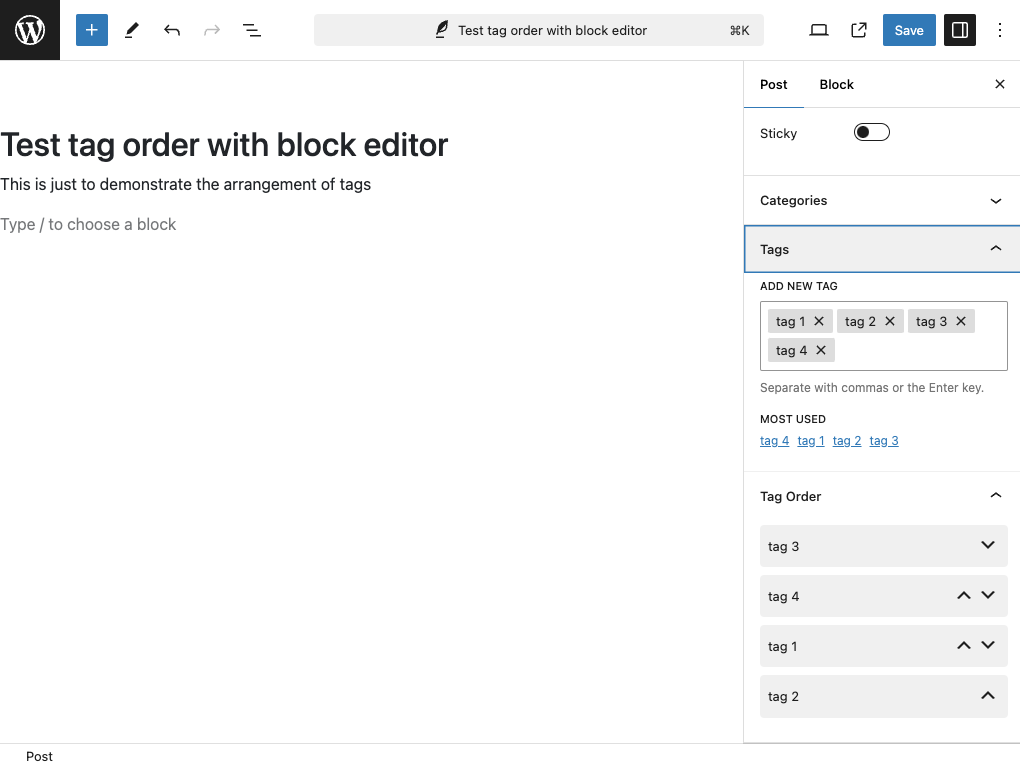
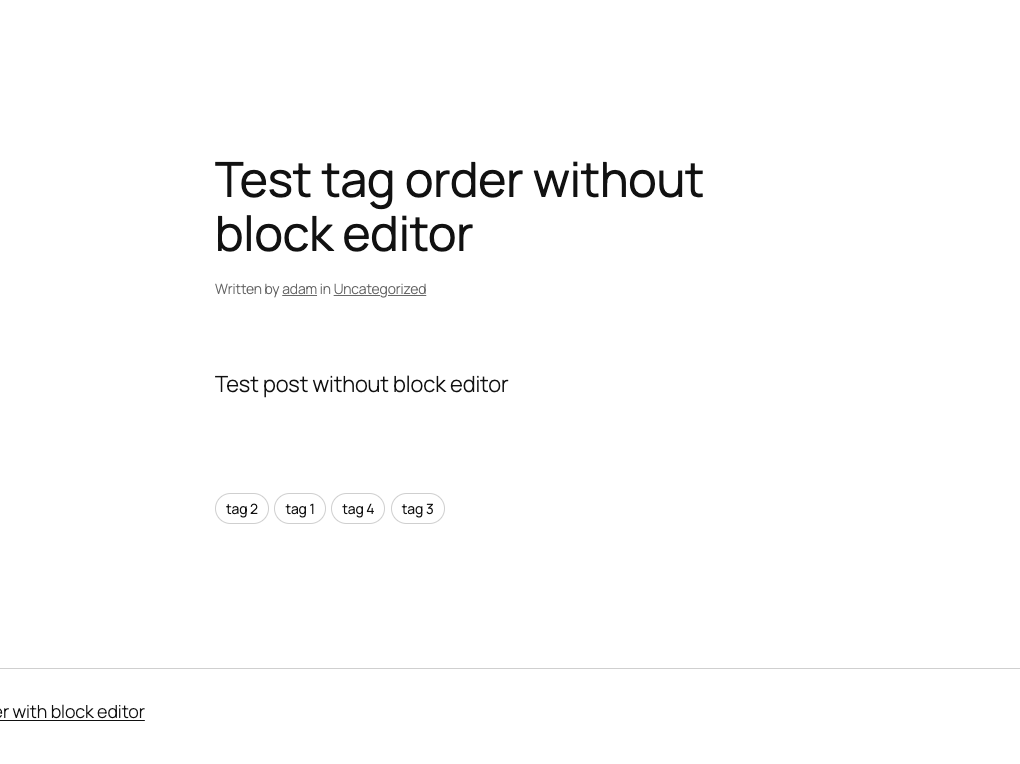
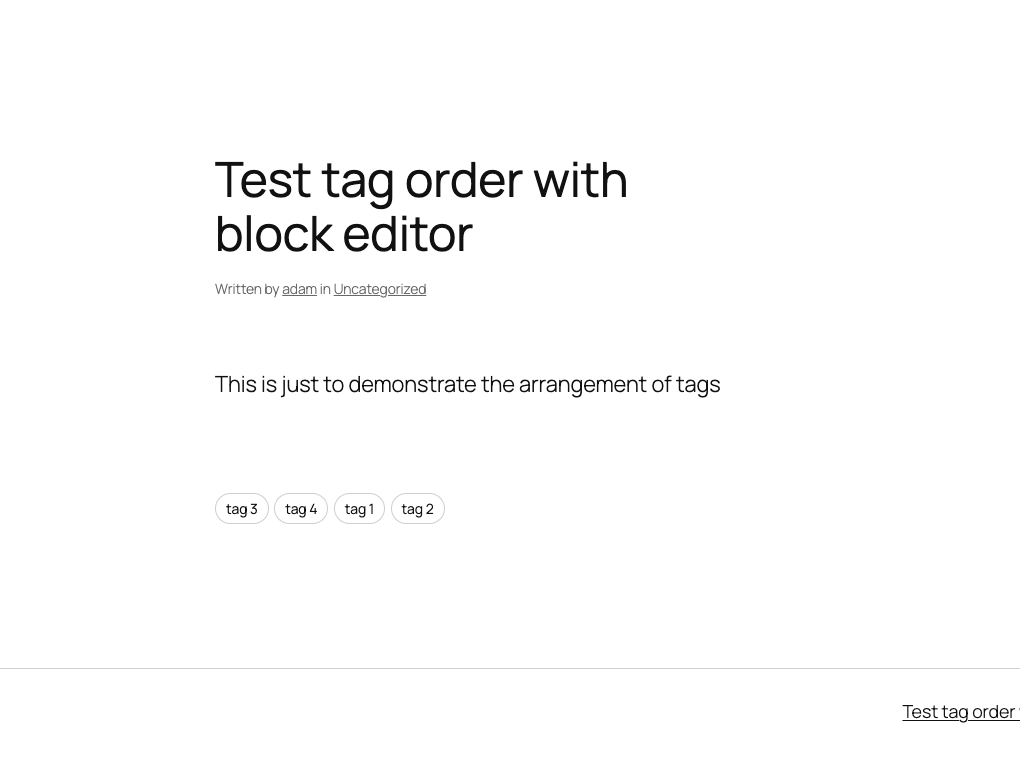
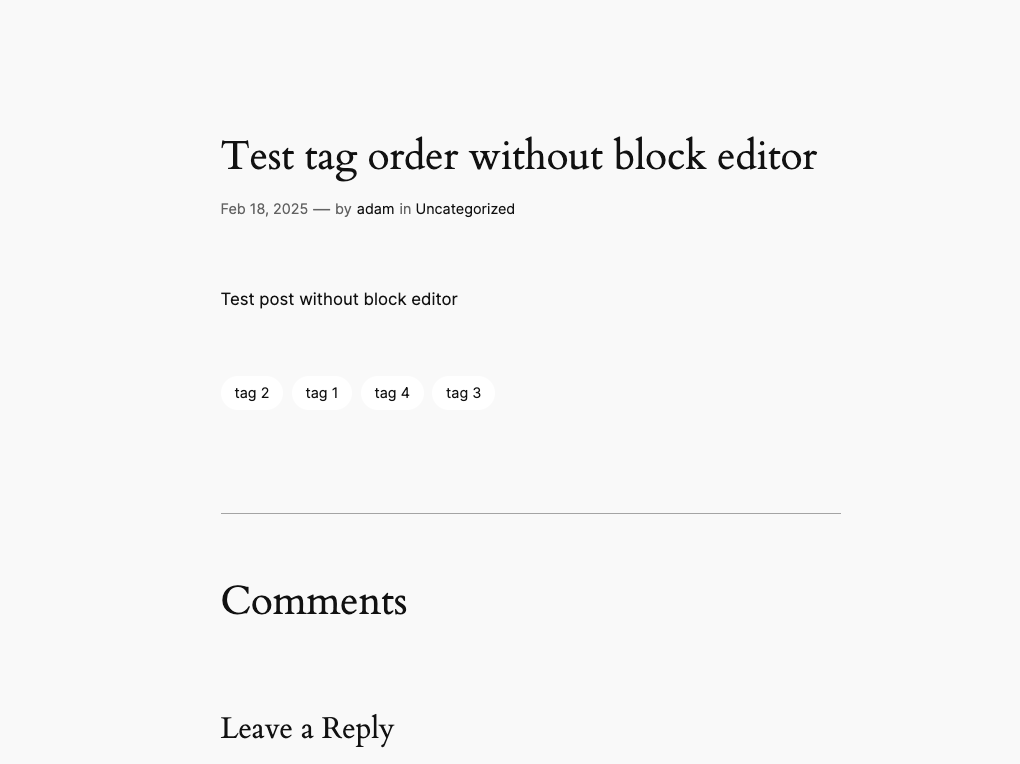
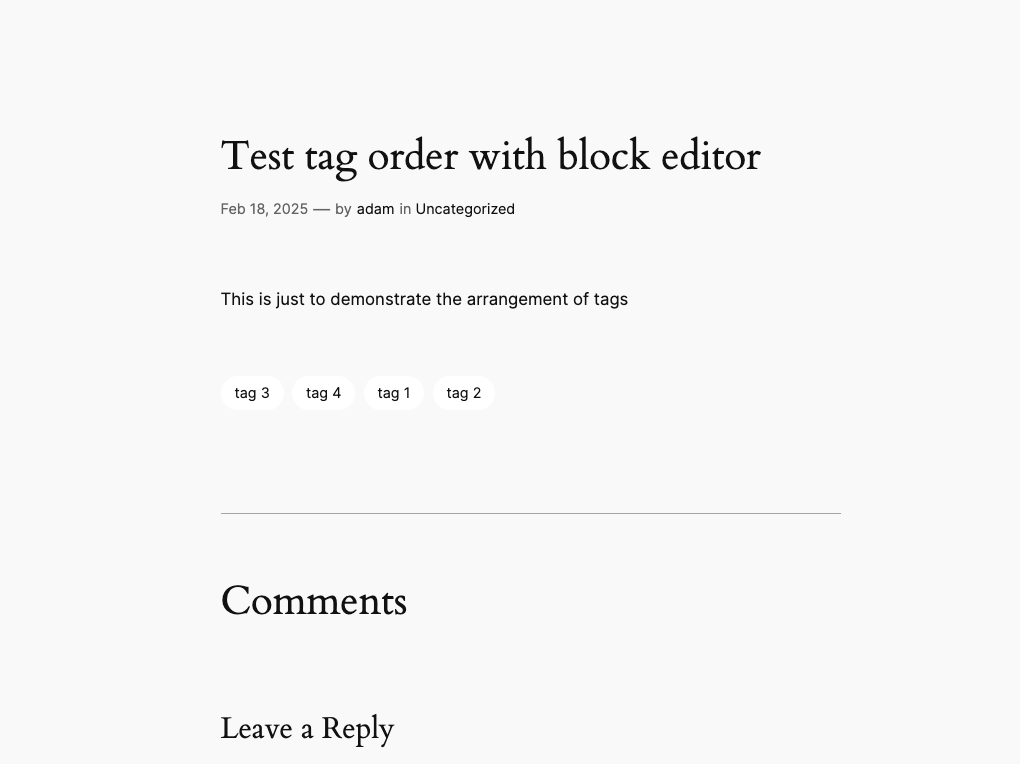
    A few months ago, I was asked to solve what I thought was a simple problem. The question was, “Can we set the display order of tags?” It seemed like a very benign question until I started to dig into it and discovered that it’s, in fact, not a simple question at all. WordPress, by default, sorts tags alphabetically when you use the get_tags() function.

    The problem I was asked to create a solution for was to allow the editor to specify the order that tags are rendered on the corresponding post page. It was way more involed thatn I had anticipated but ultimately, I created a plugin that works with both the block editor and classic editor and should also work with any theme that displays tags using the get_tags() function.

    I’ve attached some screenshots to help illustrate but the plugin can be downloaded directly from my GitHub. I have made this public and welcome any and all feedback or feature requests!

    This plugin is now also listed in the WordPress plugin directory! You can download it from WordPress.org here or add it directly from your WordPress installation.

  • Grip Strength Percentile Calculator Project

    Years ago, I worked with a doctor that specialized in sports medicine and physical therapy. He asked me to create a bespoke grip strength calculator that he could use and present to patients of his. I used charts and data available from the NIH to do the math and meet the task requirements. I wrote this in vanilla JavaScript and in a way that it could be embedded in nearly any site that allowed custom HTML. This was initially going to be embedded in a Magento content page and it worked out well.

  • I Launched My First Next.js Project

    I wanted to build a pastebin when I started learning React and Next.js. I thought this would be a good demonstration of what I’ve learned, with the ability to add features as I get more advanced with React and Next.js. It’s been a little over 6 months since I put the project aside as it ws right around the holidays and my work schedule was absolutely awful at the time.

    Fast forward to this week and I have been able to pick it back up, re-familiarize myself with my own work and get a fully functional (albeit very basic) release pushed live! You can check it out at https://pastey.io.

    My goal was to incorporate popular (and modern) technology offerings so along with Next.js, I’m using MongoDB Atlas for data storage and Auth0 for user account creation and authentication. Since this was my first real foray into a project that didn’t use MySQL, trying to wrap my brain around Mongo was difficult at first but, at least in my case, I was making it harder than I really needed to because of working exclusively with MySQL for so long. Auth0 has been fairly easy to work with as well and their documentation on intgrating into a Next.js project was a tremendous help. And finally, deploying everything on Vercel was shockingly easy.

    Once unfortunate side effect of pausing development on this project is that Next.js 13 was released right as I got too busy to make any meaningful progress. I do need to consider migrating to Next.js 13 before I add too many more features that may not be forward-compatible without a lot of rework and refactoring.

    I fully intend to keep Pastey.io operational indefinitely because I do think it’s a useful tool and not just a tech demo. I find myself using paste bins and buckets more frequently in my new role and it seemed fitting that I start using one that I’ve built from scratch. Being a police officer has made me much more paranoid about personal information security and using a tool I built myself means I know excatly what is happening with the information I give it.