Listen to this content
In the WordPress hierarchy, there is a hidden tier of authority that exists far above your standard plugins and themes. They are called Must-Use (MU) plugins.
If standard plugins are the “apps” on your phone, MU-plugins are the core operating system settings. They are powerful, permanent, and—if used correctly—they unlock a new level of control over your WordPress environment.
A Brief History: From WPMU to Core
The “MU” in MU-plugins originally stood for WordPress Multi-User.
Back in the mid-2000s, WordPress was split into two separate projects: the standard WordPress we know today and WordPress MU (WPMU)—the engine behind massive networks like WordPress.com. Because WPMU allowed a single admin to manage thousands of sites, they needed a way to force specific logic across the entire network without individual site owners being able to disable it.
The Milestone: June 2010
The turning point came in June 2010 with the release of WordPress 3.0 “Thelonious.” This update merged WordPress and WordPress MU into a single product. While “Multi-User” was rebranded to “Multisite,” the “MU-plugins” folder was kept as a legacy feature. Developers quickly realized that the ability to “force-load” code was just as useful for a single-site installation as it was for a massive network.
Today, the “MU” in MU-plugins officially stands for Must-Use.
What Makes an MU-Plugin Different?
Unlike standard plugins that live in /wp-content/plugins/, MU-plugins live in a specific directory: /wp-content/mu-plugins/.
The Key Characteristics:
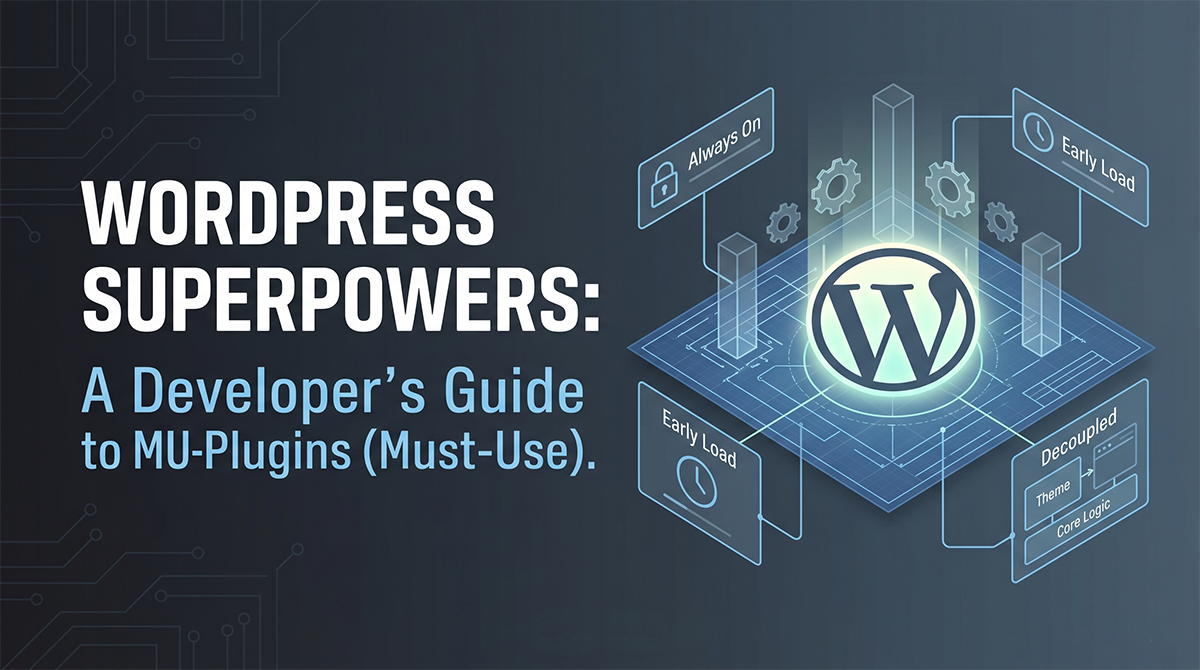
- Always On: There is no “Activate” or “Deactivate” button. If the file exists in the folder, it is running.
- Early Execution: They load alphabetically and before any standard plugins or themes. This allows you to hook into the earliest parts of the WordPress lifecycle.
- Invisible to Users: They appear in a “Must-Use” tab in the plugin menu, but they cannot be turned off by other administrators via the dashboard.
Decoupling: The Ultimate Professional Move
The biggest mistake developers make is putting site-critical logic into a theme’s functions.php file. This creates Technical Debt. If you switch themes, your custom post types, taxonomies, and security tweaks vanish.
By moving this logic to an MU-plugin, you decouple your logic from your design. Your theme becomes a “skin” that can be replaced at any time, while the “engine” of your site stays safely behind the walls.
MU-Plugin vs. UI Builders (Pods, WCK, CPT UI)
Many rely on heavy UI-based plugins to register post types. However, using an MU-plugin to write “Pure WordPress” code offers:
- Performance: You bypass the database queries required by UI builders.
- Version Control: Your architecture lives in a
.phpfile that you can commit to GitHub. - Portability: You can deploy your site structure across multiple environments without exporting/importing database settings.
Code Example: The Portfolio Power Move
Instead of a heavy plugin, use this lightweight MU-plugin to define a Portfolio CPT, a Taxonomy, and Meta Fields. Save this as /wp-content/mu-plugins/site-core-portfolio.php:
PHP
<?php
/**
 * Plugin Name: Site Core Architecture: Portfolio
 * Description: Defines the Portfolio CPT, Project Type Taxonomy, and custom meta fields.
 */

declare( strict_types = 1 );

namespace SiteCore\Portfolio;

/**
 * 1. Register the "Portfolio" Custom Post Type
 */
function register_portfolio_cpt(): void {
    $labels = [
        'name'               => 'Portfolio',
        'singular_name'      => 'Project',
        'menu_name'          => 'Portfolio',
    ];

    $args = [
        'labels'             => $labels,
        'public'             => true,
        'has_archive'        => true,
        'show_in_rest'       => true, // Essential for Gutenberg
        'menu_icon'          => 'dashicons-portfolio',
        'supports'           => [ 'title', 'editor', 'thumbnail', 'excerpt', 'custom-fields' ],
    ];

    register_post_type( 'portfolio', $args );
}
add_action( 'init', __NAMESPACE__ . '\\register_portfolio_cpt' );

/**
 * 2. Register the "Project Type" Taxonomy
 */
function register_project_taxonomy(): void {
    $args = [
        'hierarchical'      => true,
        'labels'            => [ 'name' => 'Project Types', 'singular_name' => 'Project Type' ],
        'show_in_rest'      => true,
        'show_admin_column' => true,
    ];

    register_taxonomy( 'project_type', [ 'portfolio' ], $args );
}
add_action( 'init', __NAMESPACE__ . '\\register_project_taxonomy' );

/**
 * 3. Register Custom Meta (Lightweight)
 */
function register_portfolio_meta(): void {
    register_post_meta( 'portfolio', 'project_client_name', [
        'show_in_rest' => true,
        'single'       => true,
        'type'         => 'string',
    ]);
}
add_action( 'init', __NAMESPACE__ . '\\register_portfolio_meta' );
The MU-Plugin Safety Checklist
With great power comes great responsibility. Keep these rules in mind:
- No Safety Net: A syntax error in an MU-plugin will trigger a White Screen of Death (WSoD) immediately. Always test on staging.
- No Subdirectories: WordPress only looks for single files in
/mu-plugins/. If your plugin has multiple files, use a “loader” file in the root torequire_oncethe others. - Manual Updates: Since these don’t live in the WP Repository, you are responsible for keeping the code updated and compatible with future WP versions.
Summary
By using MU-plugins, you are standing on the shoulders of WordPress history. You are graduating from the “junk drawer” of functions.php and the bloat of UI builders to create a site that is portable, professional, and permanent.
Leave a Reply